
Start here
Make your first bot
From nothing to a bot that answers !ping and /roll, in about ten minutes. You'll need the Roar desktop app or roarnode.com/app, and a computer you can install Node.js on.
Rather not code? Bot Builder makes simple bots from rules you click together. You can come back here when you want more.
1. Make the bot's account
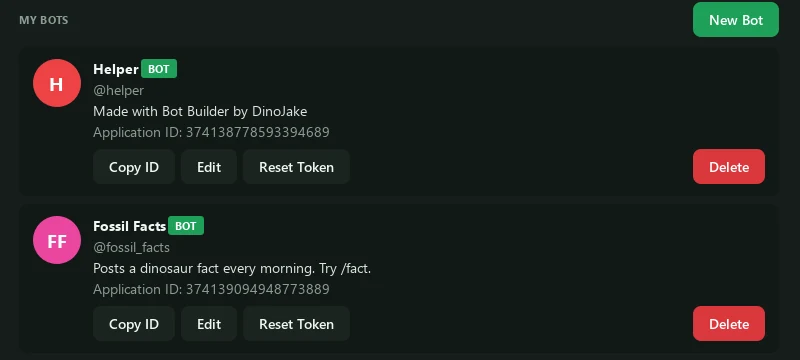
- Open the Developer pageIn Roar, open User Settings → Developer (it's under Advanced) and press New Bot.
- Name itGive it a name like Dice Bot and a short description. You can change the picture and the description later with Edit.
- Copy the tokenRoar shows the bot's token once. Copy it somewhere safe, like a password manager. If you lose it, press Reset Token for a new one.
The token is a password. Anyone who has it can post as your bot. Don't paste it in a chat, a screenshot or a file you share or upload. If it ever leaks, reset it.
2. Add it to a server
Use a server where you're an admin. A test server of your own is perfect.
- Copy the Application IDOn the Developer page, press Copy ID next to your bot.
- Add the botOpen the server's Server Settings → Bots, paste the ID under Add a bot, press Look Up, then Add to Server. You need the Manage Server permission.
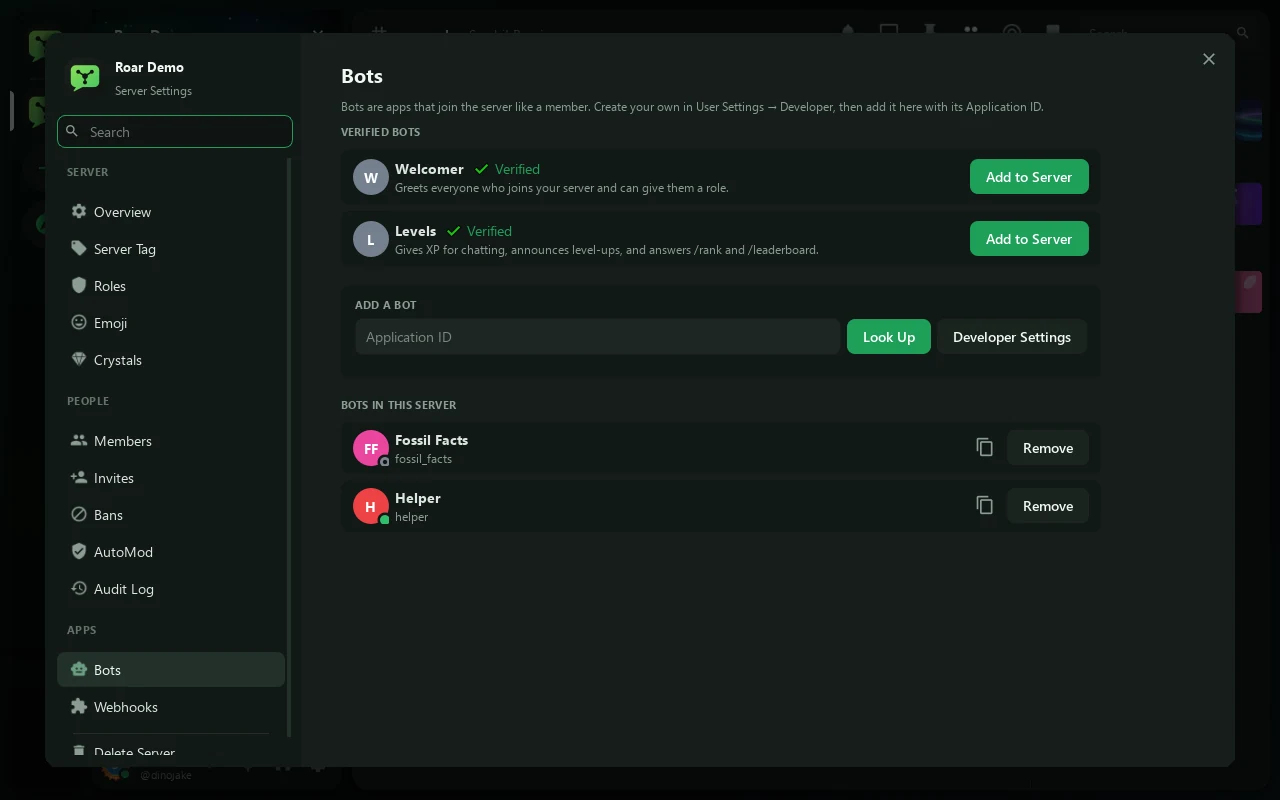
The bot shows up in the member list, offline until its program runs.
3. Install Node.js
Roar.js runs on Node.js 22 or newer. Download the LTS version for your computer and install it. Then open a terminal (on Windows, PowerShell from the Start menu) and check it worked:
node --versionIt should print v22 or higher.
4. Set up the project
Make a folder for your bot and install Roar.js into it:
mkdir dice-bot
cd dice-bot
npm init -y
npm pkg set type=module
npm install https://bots.roarnode.com/roar.js.tgz
npm pkg set type=module lets you use import, which every example here does.
5. Write the bot
Make a file called bot.js in the folder (any text editor works; VS Code autocompletes Roar.js) and paste this in:
import { Bot } from "roar.js";

const bot = new Bot({ token: process.env.ROAR_TOKEN });

bot.on("ready", () => console.log(`${bot.user.username} is online!`));

// Messages: answer !ping
bot.on("message", async (msg) => {
  if (msg.content === "!ping") await msg.reply("Pong! 🏓");
});

// A slash command with an option: /roll sides: 20
bot.command({
  name: "roll",
  description: "Roll a die",
  options: [{ name: "sides", description: "How many sides (6 if you leave it out)", type: "integer" }],
}, async (i) => {
  const sides = i.options.sides ?? 6;
  const n = 1 + Math.floor(Math.random() * sides);
  await i.reply(`🎲 ${i.user.displayName} rolled **${n}** out of ${sides}`);
});

bot.start();6. Run it
The bot reads its token from the ROAR_TOKEN environment variable, so it never sits in your code. Put your token in place of paste-your-token-here:
$env:ROAR_TOKEN = "paste-your-token-here"
node bot.jsROAR_TOKEN="paste-your-token-here" node bot.jsYou should see Dice Bot is online!, and the bot turns green in the member list. Now try it:
- Type
!pingin a channel. The bot answers Pong! 🏓. - Type
/rollin the Roar desktop app, pick it from the list, and addsides: 20if you like.
To stop the bot, press Ctrl+C in the terminal. After changing bot.js, stop it and run it again.
When something's wrong
| What you see | What to do |
|---|---|
No token | The ROAR_TOKEN line didn't run in this terminal. Set it again, in the same window, then run the bot. |
The node refused the token | The token is wrong or was reset. Copy it again from the Developer page (or reset it), and check there are no spaces around it. |
Roar.js needs a built-in WebSocket | Your Node.js is older than 22. Install the current LTS version. |
Cannot use import statement | Run npm pkg set type=module in the bot's folder. |
It runs, but doesn't answer !ping | Is the bot in that server, and can it see the channel? Check the channel's permissions for the bot or @everyone. |
/roll isn't in the list | Commands appear once the bot has connected. Make sure the bot printed "is online", then type / again. |
Missing Permissions (50013) | The bot isn't allowed to do that. Give it a role with the permission, above the roles it hands out. |
Keep it online
The bot is online while node bot.js runs. Close the terminal and it goes offline. To keep it up all the time, run it on a computer that stays on: a spare PC, a Raspberry Pi, or a small cloud server. Then use a tool that restarts it if it stops, such as pm2:
npm install -g pm2
pm2 start bot.js --name dice-bot
pm2 save
Set ROAR_TOKEN on that computer the same way first.